
How to Implement Mobile Student Checkins
A student arriving late should not create a paper trail that reaches the attendance office after first period has ended. Schools need immediate visibility into who is on campus, where students are expected to be, and which families need notification. That is the operational reason to learn how to implement mobile student checkins: the goal is not simply faster scanning. It is more reliable accountability at the moments when it matters most.
Mobile checkins can support morning arrival, tardy processing, classroom attendance, intervention rooms, athletics, assemblies, nurse visits, testing locations, and student movement throughout the day. But the technology only performs as well as the workflow behind it. A successful rollout starts with clear rules, accurate student data, and a process staff can follow during a busy school day.
Start With the Checkin Problems You Need to Solve
Before selecting devices or configuring screens, identify where accountability breaks down today. A high school may be focused on late arrivals and students entering through multiple doors. An elementary school may need quicker classroom attendance and a more accurate record of early dismissals. A district may be trying to replace disconnected processes across dozens of buildings while maintaining consistent reporting.
Define the specific events that require a checkin, who captures it, and what should happen next. For example, a late-arrival scan may need to mark the student present, record the time, assign a tardy reason, print a pass, and notify a parent. A cafeteria scan may only need to confirm the student is on campus. These are different workflows and should not be forced into one generic process.
School leaders should also decide which outcomes matter most. Common priorities include reducing attendance-office lines, improving daily attendance accuracy, documenting consequences consistently, limiting unaccounted student movement, and giving administrators real-time reports. Clear priorities prevent a deployment from becoming a collection of features nobody owns.
Build Mobile Student Checkin Workflows Before Going Live
The strongest mobile student checkin programs are designed around real staff behavior. Observe arrival procedures, classroom transitions, and dismissal routines. Ask staff where they lose time, where students bypass a process, and where information is currently entered twice. Those details shape a system that works at 7:30 a.m., not just during a demonstration.
Match the method to the location
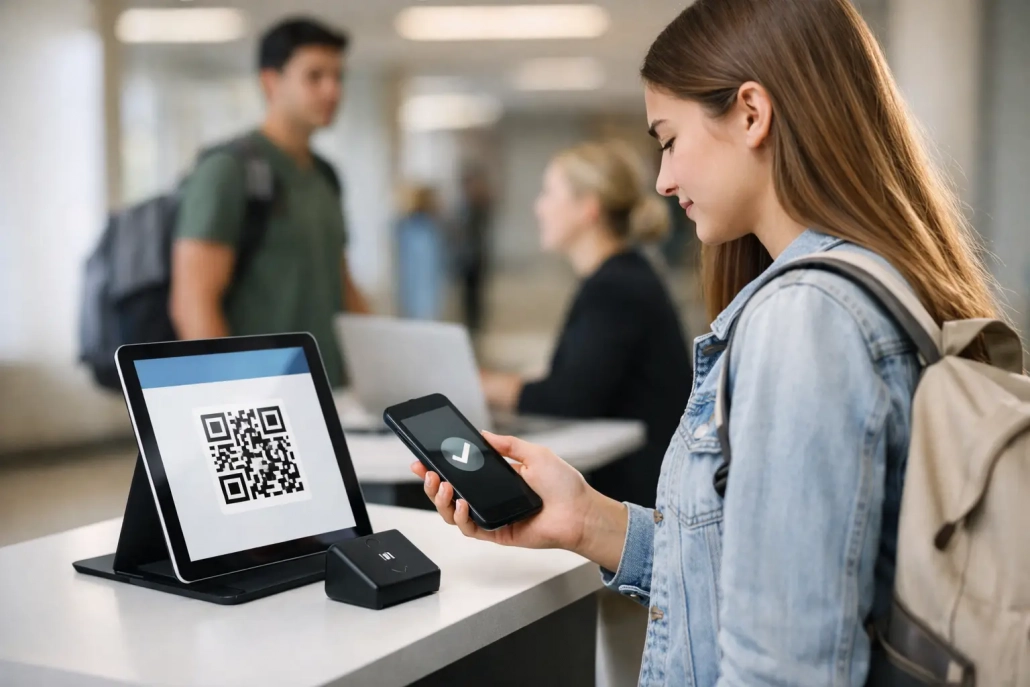
Barcode scanning is often the fastest option for high-volume locations such as entrances, cafeterias, and attendance offices. Students can scan a school ID using a tablet, mobile device, or dedicated scanner, while staff see an immediate confirmation. For classrooms, teachers may scan student IDs, use a roster-based view, or verify attendance from a mobile device depending on the age group and room setup.
Self-service checkins can reduce congestion, but they need guardrails. Schools may require staff oversight, restrict certain checkin types to authorized users, or prompt students to select a reason for tardiness. Younger students and high-traffic arrival zones generally benefit from more staff-led capture. Older students may be able to use a supervised kiosk or QR-based process if district policy permits.
Establish exception rules
Every attendance process has exceptions: a student forgot an ID, transferred into a class, arrived on a late bus, or needs to leave for an approved appointment. Staff should know exactly how to record these events without creating duplicate or conflicting records.
Set rules for manual lookup, temporary IDs, late-bus codes, approved early release, and attendance corrections. Limit who can edit finalized attendance records and retain an audit trail for changes. A mobile system should make exceptions easier to manage, not make it easier for inaccurate records to enter the system.
Prepare the Data and Integrations That Drive Accuracy
A mobile checkin platform should not operate as an isolated attendance tool. Student names, IDs, schedules, guardians, enrollment status, and attendance codes must stay aligned with the school or district student information system. When data is stale, staff lose confidence quickly. They begin using workarounds, and the value of real-time accountability declines.
Work with district IT and attendance leadership to confirm the data fields that need to flow between systems. At minimum, validate student identifiers, active enrollment, school assignments, schedules, attendance periods, and approved attendance codes. Determine how frequently data synchronizes and who resolves discrepancies.
This is also the right time to confirm reporting requirements. Attendance teams may need daily absence reports and tardy totals, while school safety teams may need an immediate roster of students checked into a specific location. District leaders may need building-level comparisons and trend data. Configure reports around those decisions rather than producing more dashboards than staff can reasonably use.
Privacy and access controls belong in the implementation plan from day one. Staff should see only the information needed for their role. Devices used at entrances or common areas should lock automatically and avoid displaying unnecessary student details. District policy, state requirements, and local procedures should guide record retention, access permissions, and parent communications.
Choose Devices and Locations for Real School Conditions
Mobile does not mean every staff member needs to use a personal phone. Many schools deploy district-managed tablets, mobile scanners, front-office workstations, or secured kiosks. The right hardware depends on student volume, building layout, internet coverage, and the level of supervision required.
Test devices in the actual locations where they will be used. A scanner that performs well in the office may struggle at an exterior entrance in bright morning light. A tablet station needs reliable Wi-Fi, power access, a protective case, and a placement that does not create a bottleneck. Consider backup options for connectivity interruptions, lost IDs, and peak arrival periods.
For large campuses, map the student entry points and movement zones first. It may be more effective to equip three high-volume entrances than to place devices in every hallway. For a smaller school, one well-managed checkin point may provide the visibility leadership needs. The best deployment is the one staff can consistently operate and administrators can confidently audit.
Train Staff for Speed, Consistency, and Ownership
Technology training should be brief, role-based, and tied to the actual workflow. Front-office staff need to know how to handle late arrivals, corrections, and parent questions. Teachers need a fast process for taking and verifying attendance. Deans and administrators need visibility into tardy patterns and student movement. IT staff need escalation procedures and device-management expectations.
Avoid one large training session that tries to teach every feature to every employee. Instead, use short scenario-based practice: scan a student who arrives late, find a student without an ID, correct an incorrect checkin, and run an end-of-day report. If staff can complete those actions confidently, adoption will be much stronger.
Identify building-level champions who can answer basic questions during the first weeks. They do not need to be technical experts. They need to understand the intended process, recognize when a record needs correction, and know when to escalate an issue. Responsive support is especially valuable during the first attendance cycle, when small configuration adjustments can remove major friction.
Launch in Phases and Measure What Changes
For most schools, a phased rollout is safer than a district-wide launch on day one. Begin with one building, one entry process, or one grade band. Use that pilot to test student IDs, scan speeds, attendance-code logic, staff adoption, reports, and parent notification workflows.
During the first two weeks, review operational data daily. Look for long lines, frequent manual entries, duplicate records, delayed synchronization, or staff members reverting to paper. Ask students and staff a focused question: where did the process slow down? Their answers often reveal issues that reports do not show.
Measure results against the problems identified at the start. A successful implementation may show shorter arrival lines, fewer manual attendance corrections, faster parent notification, better on-time attendance, or more complete location records during drills and emergencies. The numbers matter, but so does staff confidence. If attendance personnel can resolve exceptions in seconds rather than chasing paper slips, the system is delivering operational value.
SwipeK12 supports this all-in-one approach by combining mobile capture, attendance workflows, student accountability, notifications, and real-time reporting in a platform built for K-12 operations. The most effective configuration is not necessarily the most complex one. It is the one that gives each building a dependable, repeatable answer to a basic question: where is every student supposed to be right now?
Keep Improving After the First Bell
Mobile student checkins should evolve with the school calendar. Revisit procedures after the first month, at the semester change, and before major events such as testing, assemblies, or new student enrollment periods. Attendance patterns change, staff assignments change, and a workflow that was right for August may need adjustment by January.
Keep the improvement cycle practical. Review exception reports, ask staff what they still enter manually, and look for places where the system can remove a repeated step. When checkins are easy to complete, trusted by staff, and connected to timely action, they become more than an attendance task. They become a dependable foundation for safer, more accountable school operations.


Leave a Reply
Want to join the discussion?Feel free to contribute!